SoftKitchen · The kitchen screen, with production and recipes.

Every order on the screen, the moment it is sent.

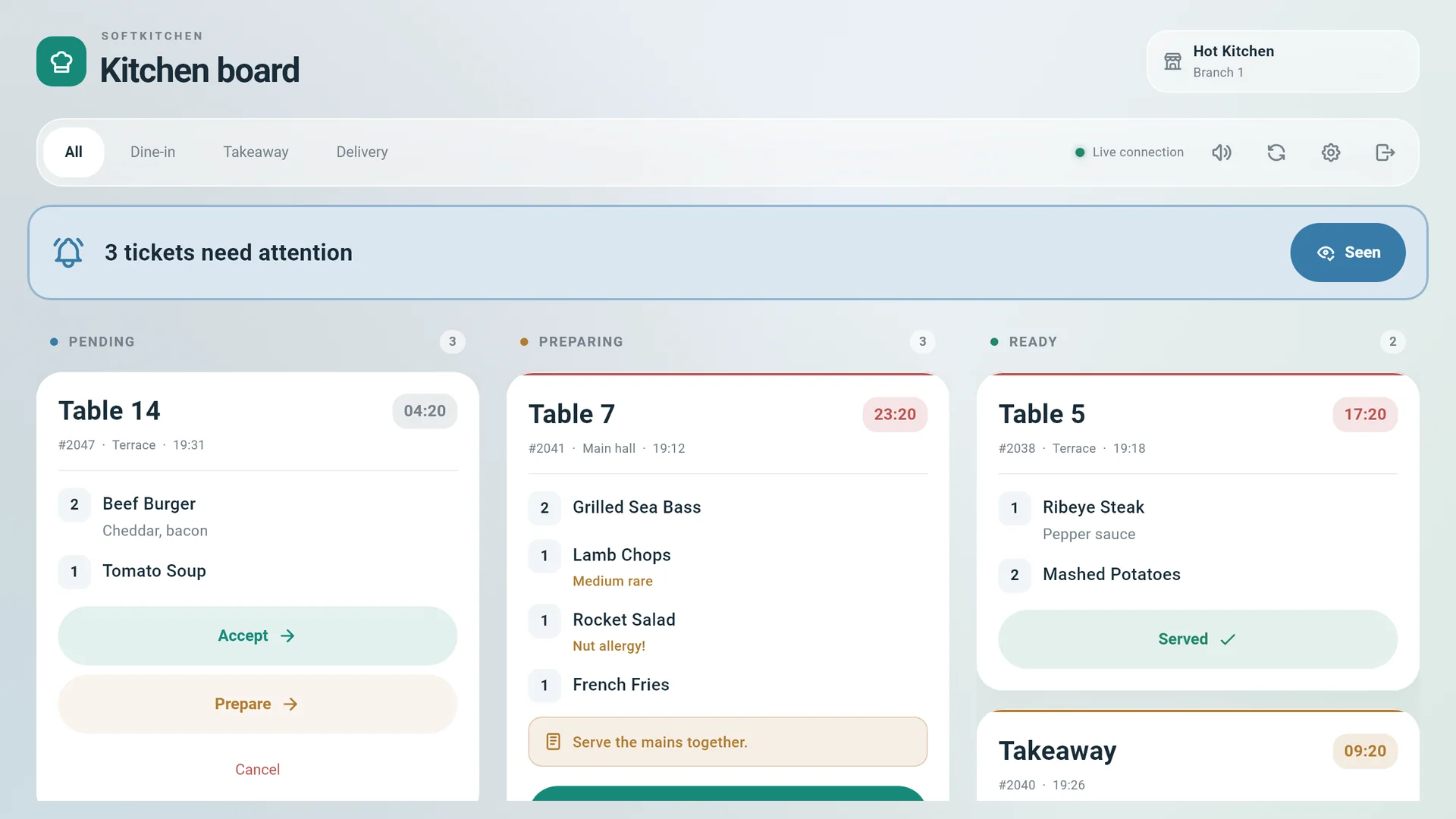
SoftKitchen runs on a screen in the kitchen, at the bar or at the pass. Orders taken on SoftPOS arrive in real time, with their variants, extras and notes, and the cooks move each ticket forward with a tap. No paper tickets, no second entry.

SoftKitchen · The kitchen screen, with production and recipes.
Runs on
Android tablets, iPad, Windows
Languages
English, German, French, Italian, Turkish, Spanish, Portuguese, Russian
Price
Needs the Kitchen display add-on · See the price list

SoftKitchen

What it does

The live board

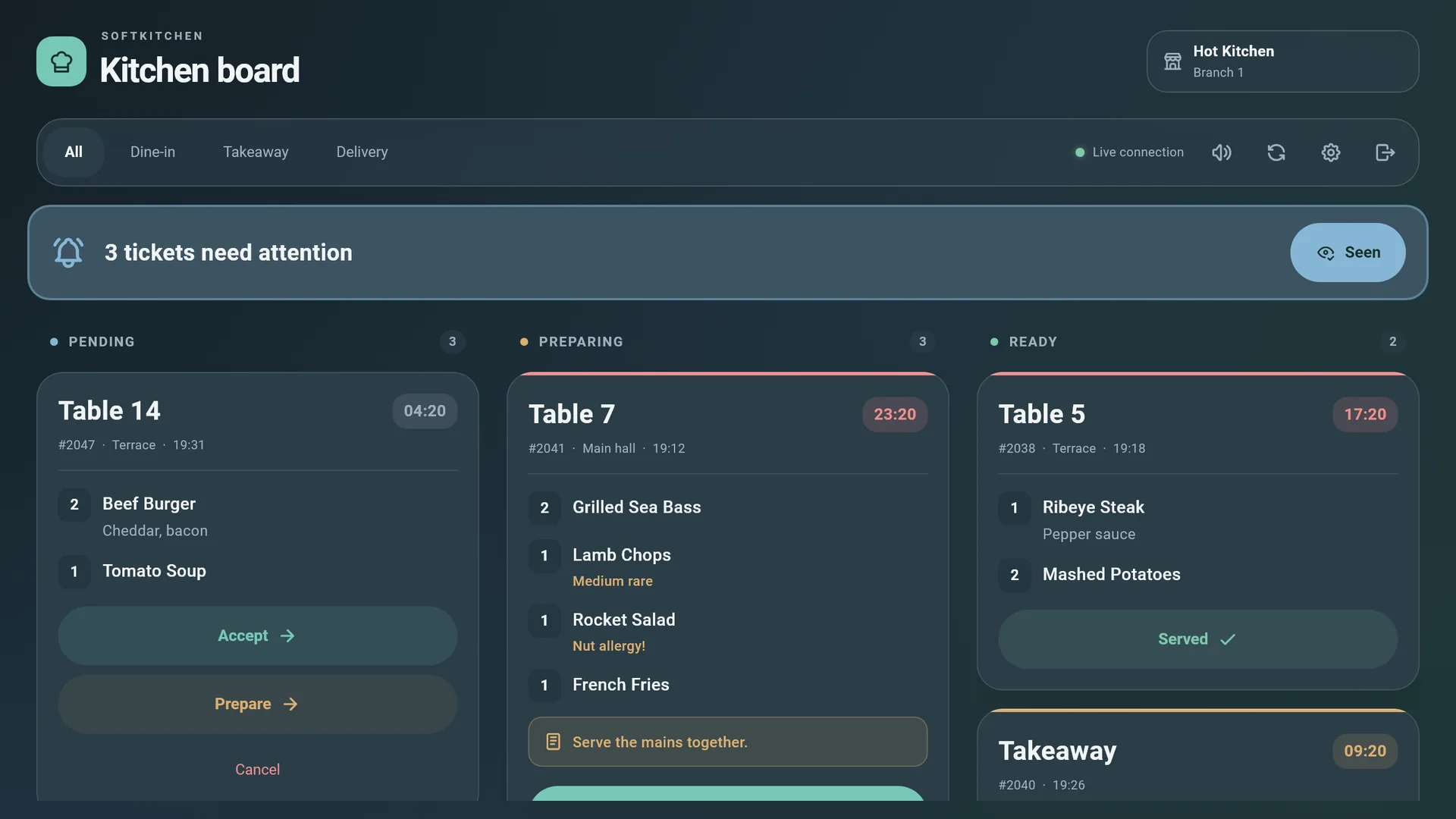
  • Three columns: pending, preparing and ready; a running timer on every ticket
  • Table and area for dine-in; takeaway and delivery clearly marked, with filters
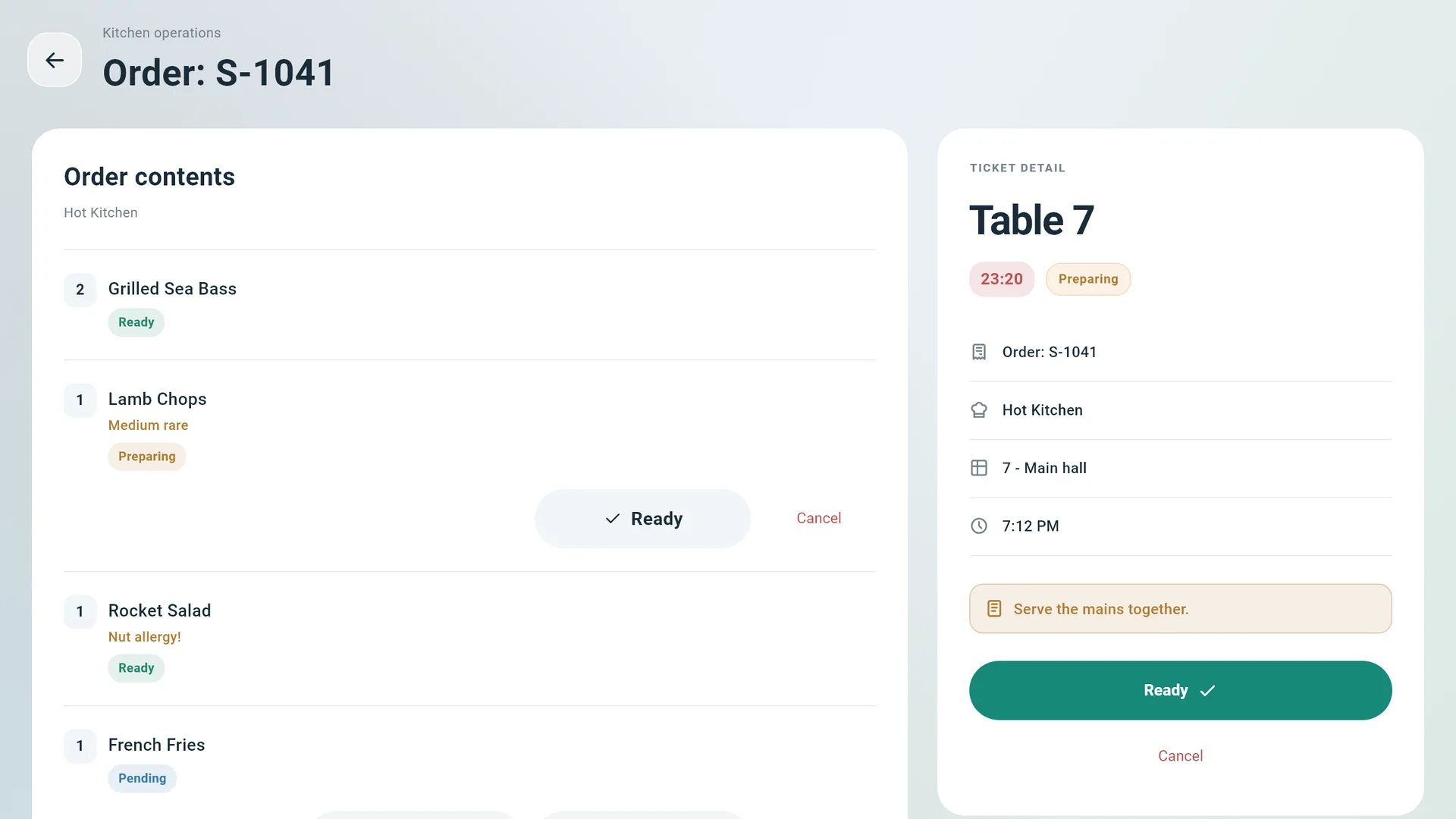
  • Quantities, variants, extras and notes per dish and per order
  • Single dishes moved or cancelled; cancellations stay highlighted until a cook confirms them
  • Each screen follows its own kitchen stations, for example the hot kitchen or the bar
  • Reconnects by itself and shows when the live connection drops

Production and recipes

  • Production orders of the day with their recipe, planned quantity and material requirements
  • Recipes with ingredients and batch yield, read on the kitchen screen
  • A cook’s PIN for actions that change something

Set-up

  • Activate a screen by scanning the station’s QR code, or with station code and password
  • Pearl, Glacier and Night themes; increased contrast
  • Landscape layout for tablets and screens

What you need

  • A Softphia account with Point of sale and the Kitchen display add-on (one screen included; more with the Additional kitchen screen pack)
  • Production and recipes on the screen need the Production and Recipes modules
  • An Android tablet, an iPad or a Windows device, mounted in the kitchen

What it does not do

  • It shows and moves the tickets; selling and payment stay on SoftPOS

Get the app

Questions and answers

Can guests at one table pay separately?

Yes, with the Point of sale module and the Table management add-on. In SoftPOS you open the table and choose Split Bill:

  1. Add a guest for each person who pays separately; you can give each guest a name.
  2. Hand each guest their share of every line, unit by unit, until every item is assigned.
  3. Confirm. Each guest now has a bill of their own, priced by Softphia, and you take payment one bill at a time. The other bills stay open on the table.

Good to know:

  • A table is split once; the till screen has no undo for a split.
  • Sending to the kitchen still covers the whole table, and the kitchen ticket lists the items under each guest’s name.
  • A guest can also pay their own bill partly in cash and partly by card, with the mixed payment method.
Can I take pickup and delivery orders?

Yes, with the Point of sale module. Restaurants, cafés, bakeries and takeaways have the pickup queue on their till; other businesses switch pickup on per branch. Delivery is switched on per branch.

Pickup

A pickup order gets a ticket number and waits on the Pickup queue. Staff move it through preparing and ready and hand it over when the customer collects it. You can set an estimated pickup time. The order can be paid at once, or placed unpaid and paid on collection; a branch that routes payments through a card terminal takes the payment when the order is placed.

Delivery

A delivery order takes the customer’s address, a delivery method with its fee and, if needed, a scheduled time. The Delivery dispatch board then follows each order until it has been delivered.

Good to know

  • With the Kitchen display add-on, the kitchen’s progress moves the orders on for you.
  • With the Email or SMS add-on, customers can be told that their order is ready to collect or on its way, once you switch these messages on.
  • Orders come in at the till, in person or by phone; Softphia has no online ordering for customers.
Can I work with a floor plan and table reservations?

Yes, with the Table management add-on, which needs Point of sale.

  • Floor plan: you draw your floors and tables in the Softphia panel. Each branch has its own plan.
  • At the till: SoftPOS opens on the floor. You open a table, add items, send rounds to the kitchen, print a pre-bill and take payment. A table can be moved, and items can be transferred to another table.
  • Table status: the floor shows each table as Available, Occupied or Reserved, and all tills of the branch see the same plan.
  • Reservations: taken at the till in SoftPOS, with the guest’s name, the table, date and time, duration and number of persons, and also listed in the panel. A table cannot be booked twice for overlapping times.
  • On the go: SoftBoss shows occupied tables and reservations.

For a restaurant, Softphia recommends Point of sale with Table management; kitchen screens and tips are optional add-ons.

Can my staff collect and share tips?

Yes, with the Tips add-on, which needs Point of sale.

  1. At checkout in SoftPOS, the cashier enters the tip. It is added on top of the amount due and saved with the order.
  2. The tips of a till shift form its tip pool. The shift’s X and Z reports and the SoftPOS daily report show the tips.
  3. After the shift is closed, you share the pool out in the Softphia panel under Sales › Tips: directly to the waiter, manually, equally or weighted.

Under Settings › Selling and the till you set a tip rule for all branches or for one branch: the method suggested by default, and who may receive tips, waiters only or all staff including the kitchen. The panel also keeps the distribution history and a summary per staff member.

The add-on suits cafés, bars and restaurants, and also salons and other service businesses.

Do orders go straight to the kitchen?

Yes, without being typed in twice. You set up kitchen stations, such as the hot kitchen or the bar, and route categories or single products to them. Each item then goes to its station.

On screens: Kitchen display

With the Kitchen display add-on, which needs Point of sale, orders appear on a kitchen screen running SoftKitchen. The board has the columns PENDING, PREPARING and READY, and the cooks move each ticket forward. For takeaway and delivery orders, the kitchen’s progress also updates the order at the till. One kitchen screen is included, and each Additional kitchen screen adds one.

On paper: kitchen printers

At tables served with the Table management add-on, staff send each round with Send to Kitchen, and the tickets print on the kitchen printers of the stations. You do not need a kitchen screen for this.

Good to know: at a counter without table service, orders reach the kitchen screens as soon as the sale is recorded; the kitchen printers do not print them.


Frequently asked questions

More Softphia products

Your next working day starts here.

Open your workspace, pick your kind of business and bring your team in. Garage, salon, shop or café: the setup is ready for you.